

Adobe Photoshop has a feature to save an image for web display and transfer called Save for Web also known as Save for Web and Device on newer version. Besides, other feature is Batch for automation process. The problem is, how to combine those two features? How to run save for web in batch? On other words, how to run save for web for multiple images at a time?
Read More...
Showing posts with label Image. Show all posts
Showing posts with label Image. Show all posts
Sunday, January 23, 2011
Tuesday, September 15, 2009
Resize Multiple Images With SNS-Resizer
The easiest way to resize multiple pictures is using a batch program named SNS-Resizer. Besides resizing multiple images, with this application you can add 'Picture taken on' data, frame, and watermark to images you want to modify.
First, download SNS-Resizer here (853kb). After download, you don't have to install anything because this is a portable application or no installation needed, so run it.
Read More...
First, download SNS-Resizer here (853kb). After download, you don't have to install anything because this is a portable application or no installation needed, so run it.
Read More...

Thursday, June 4, 2009
Photoscape - Best Free Photo Editing Software
Once you download and install it, you may won't believe that it's free! Photoscape is a free photo editing software with tons of abilities and easy of use. This best photo editing software armored with:
Viewer: View your photo collections in thumbnail mode and folder tree. You can resize thumbnail size easily.
 Editor: Open a photo, you then can add frame, insert simple object, crop photo, remove red eye, resize photo, adjust brightness and color, add effects, and other useful yet simple operations.
Batch Editor: Just like Editor function with automate operation.
Page: Make a collage of some photos in one page. Similar with Contact Sheet on ACD See, with many available template.
Combine: Combine and merge photo shots in sequence. This function is like photomerge feature in Adobe Photoshop and Canon Photostitch.
AniGIF: Create a gif animation photo contains some photos.
Splitter: Split and divide photo into multiple parts
Screen Capture: Capture a screen shot and save it into many file formats.
Color Picker: Pick a color anywhere on the screen with Hex and RGB format. Similar Quick Color Picker.
Raw Converter: Ability to convert raw file format into JPG.
Rename: Renaming multiple photos with series of filename.
Print: Of course you can also print photos with many template size and thumbnail print.
I think a free photo editing software couldn't be better than this. That's why Photoscape is the best amazing free photo editor. I do recommend Photoscape for beginner and intermediate photo editor. Even a pro will get many advantages. It is a must have software.
Pros: Free, easy of use, tons of abilities.
Cons: It's rather hard (or impossible?) to capture Photoscape window itself.
Download Photoscape here. Read More...
Viewer: View your photo collections in thumbnail mode and folder tree. You can resize thumbnail size easily.
 Editor: Open a photo, you then can add frame, insert simple object, crop photo, remove red eye, resize photo, adjust brightness and color, add effects, and other useful yet simple operations.
Batch Editor: Just like Editor function with automate operation.
Page: Make a collage of some photos in one page. Similar with Contact Sheet on ACD See, with many available template.
Combine: Combine and merge photo shots in sequence. This function is like photomerge feature in Adobe Photoshop and Canon Photostitch.
AniGIF: Create a gif animation photo contains some photos.
Splitter: Split and divide photo into multiple parts
Screen Capture: Capture a screen shot and save it into many file formats.
Color Picker: Pick a color anywhere on the screen with Hex and RGB format. Similar Quick Color Picker.
Raw Converter: Ability to convert raw file format into JPG.
Rename: Renaming multiple photos with series of filename.
Print: Of course you can also print photos with many template size and thumbnail print.
I think a free photo editing software couldn't be better than this. That's why Photoscape is the best amazing free photo editor. I do recommend Photoscape for beginner and intermediate photo editor. Even a pro will get many advantages. It is a must have software.
Pros: Free, easy of use, tons of abilities.
Cons: It's rather hard (or impossible?) to capture Photoscape window itself.
Download Photoscape here. Read More...
Sunday, March 29, 2009
CMYK an RGB Color Model Introduction
Every image has a color palette. They could be black and white, grayscale, duotone, RGB, CMYK and so on. There are 2 common color palette used in image processing; RGB (Red Green Blue) and CMYK (Cyan Magenta Yellow Black). Processing an image in unsuitable color could bring it to wrong color and disapointing result. To know this color differences is important for people who dealing with image processing.
RGB formed from three main color; Red, Green and Blue on a black media. Your monitor uses RGB color. To display a color other than red, green and blue, monitor will mix two of that three color or mix all color with certain value. FOr example, yellow produced by mixing red and green. Magenta is mixed of blue and red, etc.

CMYK or CMY formed from four main color; Cyan, Magenta, Yellow and Black on a white media. CMYK used in printed images on paper. Most printer use CMYK method to produce an image.
Because monitor uses RGB and printer uses CMYK that's why the printout will not produce exact color as you see on the monitor. To obtain optimal result between color in monitor and printout, you have to calibrate the monitor.
Conclusion: for displaying purpose, use RGB to match your monitor, otherwise for printing purpose, use CMYK. Read More...
RGB formed from three main color; Red, Green and Blue on a black media. Your monitor uses RGB color. To display a color other than red, green and blue, monitor will mix two of that three color or mix all color with certain value. FOr example, yellow produced by mixing red and green. Magenta is mixed of blue and red, etc.

CMYK or CMY formed from four main color; Cyan, Magenta, Yellow and Black on a white media. CMYK used in printed images on paper. Most printer use CMYK method to produce an image.
Because monitor uses RGB and printer uses CMYK that's why the printout will not produce exact color as you see on the monitor. To obtain optimal result between color in monitor and printout, you have to calibrate the monitor.
Conclusion: for displaying purpose, use RGB to match your monitor, otherwise for printing purpose, use CMYK. Read More...
Comparing Image File Format; JPG, BMP, TIFF, GIF, PNG and Usages
Here I want to give a short comparison and description of some most popular image file format. This article made based on my understanding of those image file format which I got from my experience and some sources. I will only consentrate to common Bitmap format since there are two (CMIIW) image format used widely; Vector and Bitmap/raster image format. Of course, besides the charateristics of JPG, GIF, PNG, TIFF and BMP file format, I will try to give short desription of usages of each format.
1. JPEG
JPEG or JPG is most popular image format nowadays. JPG is lossy file format. Lossy means when you save a graphic or image in JPG format it will loss details and reduce quality depends on degree of compression and resolution of the image. Even so, JPG offer small file size. JPG commonly used for photographic images especially in large image dimension. JPG is best format if you want to share image over internet or display it on a site. For sharing image via email -just showing it to friends, for example, I think 800x600 resolution with compression 80% is enough. To get more detail, you can choose 1024x768 resolution, depends on your original resolution.

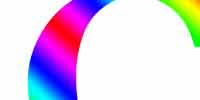
On the other hand, JPEG is not as well suited for line drawings and other textual or iconic graphics, where the sharp contrasts between adjacent pixels cause noticeable artifacts. Such images are better saved in a lossless graphics format such as TIFF, GIF, PNG, or a raw image format. JPEG is also not well suited to files that will undergo multiple edits, as some image quality will usually be lost each time the image is decompressed and recompressed (generation loss). To avoid this, an image that is being modified or may be modified in the future can be saved in a lossless format such as PNG, and a copy exported as JPEG for distribution.
2. BMP
BMP is Windows image (and oldest?) format and free of patents that makes it very common format that any picture editing program from many operating system can read and write. BMP usually has a huge filesize due to lack of compression. My suggestion, avoid saving a picture in BMP because it takes a lot of space. When you perforce to store or deliver image in BMP, you can reduce its filesize by compressing first into ZIP or RAR format.
3. TIFF
TIFF is losless format. Even so, TIFF filesize relative small compared to BMP. TIFF is flexible format that able to be a container holding compressed JPG, also can include a vector based clipping path. TIFF is suitable to store image, and printing purpose format. TIFF also offer LZW compression (resemble to ZIP) to reduce filesize. TIFF also support multiple pages in single file.
4. GIF
GIF a lossless format used widely in internet graphic. GIF supports colors up to 256 colors only in an image. So if it is a photograph, for example, do not use GIF format to avoid losing image colors. GIF also support animation and of course contain multiple images. GIF suitable for sharp edges image line art (like logos).
5. PNG
PNG is lossless format made to replace GIF as a format not requiring a patent license. PNG support RGB and doesn't support CMYK. PNG designed for images on the internet, not professional printing. PNG supports transparency, so when you need to overlap an object with other, choose PNG for the foreground image. PNG filesize bigger than JPG and GIF. But image quality better than GIF since PNG support larger color and lossless. Though PNG designed to replace GIF, PNG doesn't support animation. Even so, Mozilla Foundation is developing animated PNG that'll make PNG format supports animation.

1. JPEG
JPEG or JPG is most popular image format nowadays. JPG is lossy file format. Lossy means when you save a graphic or image in JPG format it will loss details and reduce quality depends on degree of compression and resolution of the image. Even so, JPG offer small file size. JPG commonly used for photographic images especially in large image dimension. JPG is best format if you want to share image over internet or display it on a site. For sharing image via email -just showing it to friends, for example, I think 800x600 resolution with compression 80% is enough. To get more detail, you can choose 1024x768 resolution, depends on your original resolution.

Format: JPG Quality: 50; dimension: 200x100 px; filesize: 3 kb (zoomed 1.5x)

Format: JPG Quality: 12; dimension: 200x100 px; filesize: 2 kb (zoomed 1.5x)
On the other hand, JPEG is not as well suited for line drawings and other textual or iconic graphics, where the sharp contrasts between adjacent pixels cause noticeable artifacts. Such images are better saved in a lossless graphics format such as TIFF, GIF, PNG, or a raw image format. JPEG is also not well suited to files that will undergo multiple edits, as some image quality will usually be lost each time the image is decompressed and recompressed (generation loss). To avoid this, an image that is being modified or may be modified in the future can be saved in a lossless format such as PNG, and a copy exported as JPEG for distribution.
2. BMP
BMP is Windows image (and oldest?) format and free of patents that makes it very common format that any picture editing program from many operating system can read and write. BMP usually has a huge filesize due to lack of compression. My suggestion, avoid saving a picture in BMP because it takes a lot of space. When you perforce to store or deliver image in BMP, you can reduce its filesize by compressing first into ZIP or RAR format.
3. TIFF
TIFF is losless format. Even so, TIFF filesize relative small compared to BMP. TIFF is flexible format that able to be a container holding compressed JPG, also can include a vector based clipping path. TIFF is suitable to store image, and printing purpose format. TIFF also offer LZW compression (resemble to ZIP) to reduce filesize. TIFF also support multiple pages in single file.
4. GIF
GIF a lossless format used widely in internet graphic. GIF supports colors up to 256 colors only in an image. So if it is a photograph, for example, do not use GIF format to avoid losing image colors. GIF also support animation and of course contain multiple images. GIF suitable for sharp edges image line art (like logos).
5. PNG
PNG is lossless format made to replace GIF as a format not requiring a patent license. PNG support RGB and doesn't support CMYK. PNG designed for images on the internet, not professional printing. PNG supports transparency, so when you need to overlap an object with other, choose PNG for the foreground image. PNG filesize bigger than JPG and GIF. But image quality better than GIF since PNG support larger color and lossless. Though PNG designed to replace GIF, PNG doesn't support animation. Even so, Mozilla Foundation is developing animated PNG that'll make PNG format supports animation.

Format: PNG dimension: 200x100 px; filesize: 4 kb (zoomed 2x)
Read More...
Wednesday, March 18, 2009
Hex and HTML Color Picker
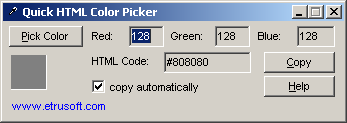
Quick HTML Color Picker is the best and free color picker software I ever found. This color picker is a must have tool for any webmaster, web design, blogger and Adsense publishers. Quick HTML Color Piker identify color HTML code anywhere on the screen including bitmap and vector graphic.
For all Adsense publisher whole the world, I do recommend this tool. Quick HTML Color Picker also a portable software since it doesn't need any installation. To pick a color you only need to run the program, clik Pick Color then paste it anywhere you need because this tool support copy automatically to clipboard.
Download Quick HTML Color Piker (228 kb) Read More...
Monday, March 16, 2009
Switch Desktop Background Image Automatically
John's Background Switcher (or JBS for short) periodically switches the screen background image on your desktop (for every hour or every day) automatically to something interesting. The John's Background Switcher application stays in your system tray (down by the clock) and changes your wallpaper at the time interval of your preference.
You tell it where to get pictures from and how to show them - maybe you just wanna see one photo at a time or maybe you'd like to see a 'Snapshot Scrapbook' of photos thrown across your desktop. It's up to you and you never know what's coming next!
Here are some features of "John's Background Switcher":
Download here Read More...
You tell it where to get pictures from and how to show them - maybe you just wanna see one photo at a time or maybe you'd like to see a 'Snapshot Scrapbook' of photos thrown across your desktop. It's up to you and you never know what's coming next!
Here are some features of "John's Background Switcher":
- Display Individual pictures on your computer.
- Folders containing pictures on your computer such as 'My
- Pictures'.
- Flickr photo sharing - selecting pictures by person, tags, sets or
- just plain random. You never know what you're going to get next!
- Phanfare web albums - keep up to date with your friends and
- family.
- smugmug photo galleries - yours, your friends, anybody's!
- Picasa Web Albums - choose from specific albums or any search
- text.
- Facebook - your friends photos on your desktop!
- Yahoo! image search - the internet is your oyster!
- Any Media RSS feed - choose pictures from sites like DeviantArt,
- Photobucket, LOLCats and Zooomr amongst many others!
Download here Read More...
Thursday, January 8, 2009
Retouch and Beautify Digital Image Easily

Sometimes pictures produced by a digital or phone camera need to be edited before printed or published on internet. Especially pictures or photographs that was taken in dark/less lighting condition, moving object or taken by cheap digital and phone camera. There are many programs you can choose to fulfill your need of retouching digital image, one of them is Helicon Filter. Helicon filter is easy to use digital image editor even though for beginner because it process your image with wizard. This digital image editor offers several professional tools for editing process of an image.
Helicon Filter has an intuitive interface, help context and full screen preview for easy use and editing. Some professional photography editing tools included are selective noise reduction, sharpening without halos, haze compensation filter, chromatic aberration filter, distortion and vignette correction. After editing, you can directly print the image, send by email or send to mobile phone.
Download Helicon Filter here (31,54 mb) Read More...
Automatic Randomize Wallpaper Shifting

Desktop is the display that you see first after logon into a computer to start a job. Desktop wallpaper is one of important part that may influence your mood and affect on the result of your work. An amazing wallpaper picture will not amaze you anymore when you see it everyday for a long time, even that could bring you bored, isn’t it?
Wallpaper Shifter is program to automate wallpaper shifting every time you turn on computer and randomize wallpaper cycling in a defined folder. Usually, to make a picture as desktop background or wallpaper it has to be fit with display aspect ratio, but Cyber-D’s Wallpaper Shifter will handle all images with any aspect ratio image. So if the wallpaper picture doesn’t fit to desktop, Wallpaper Shifter will automatically crop, fit or center wallpaper images. You can also choose background for unfitted picture by default, blur of edge repeat effect. Wallpaper Shifter doesn’t consume a lot of computer resource since it only work once every computer starts.
Download this automatic randomize wallpaper shifter here. (8,11 mb) Read More...
Print to BMP, JPG, PNG, TIFF and PDF by Virtual Printer

For any purposes, you may want to print or save your document into image format such as BMP, JPG, PNG, TIFF, PDF or even RAW. The cheapest and easiest way to do so is by installing a virtual printer; ImagePrinter. This virtual printer allows you to print from any program to image format. You can download the installer here (996 kb). After install, you can configure the options to what image format you would print in File Format tab. Define the print output folder and press OK. Next, to print you have to choose ImagePrinter on print dialog box from any software then print as usual. I tried it, A4 sheet with full text produces file size around 936 kb in TIFF format by LZW compression and image dimension 2480 x 3507 pixels. If you print to PDF, it doesn’t produce a postscript PDF file but a raster document.
--Update on 02/Oct/2010--
Many people come to this page looking for a PNG printer and the ImagePrinter doesn't work well to handle large paper size document, especially the presence of watermark added by the free version of the software as reported. After digging for better alternative, you may try PDFCreator (download it here). Similar with ImagePrinter, PDFCreator is a virtual printer that is able to produce a PDF file and some other image format and it works well to handle large size document and doesn't add any watermark. But, when it comes to PNG files, it's unable to produce a transparent background as it is PNG format's ability.
Better output
I myself prefer to use this method to produce an better (if I can't say best) image output especially from Microsoft Word document:
- Export to PDF using Adobe Acrobat (choose press quality for best output)
- Import the PDF files to CorelDraw. Even I will be able to re-edit the file.
- Export to any image format from CorelDraw
Sunday, November 16, 2008
CorelDraw Viewer, ST Thumbnails Explorer
Here is an easy to use CorelDraw viewer and other vector file named ST Thumbnails Explorer or StTex. Not only cdr viewer, StTex also allow you browse thumbnail and view files produced by vector editor:
Here are some abilities of ST Thumbnail Explorer:
Download ST Thumbnails Explorer here
 Read More...
- CorelDraw v.4 - X4 (cdr, cmx, ccx, cdt, pat)
- Adobe Illustrator v.7 - CS3 (ai, ait, eps)
- Macromedia Freehand v.7 - 11 (fh7-11, ft8-11)
- CorelXara and Xara X (xar, art, web)
Here are some abilities of ST Thumbnail Explorer:
- Support drag & drop, shell's context menu etc and can be used as the full file-manager (like MS Explorer)
- Handle some vector formats without installation of the appropriate vector editors;
- Able to explore and view files in local networks;
- Rotates and scales thumbnails of files in a range from 32x32 up to 600x600 pixels;
- Displays parameters of files (version, parameters of thumbnails, keywords and notes, size, date etc), as tooltips and in status bar;
- Filters displayed files (including with wildcards);
- Displays animation of plural animated GIF files in the browser window;
- Displays all pages of multi-page TIFF, GIF, ICO and some other file formats;
- Copy the parameters of selected files for use by any other applications;
- Flexibly sort displayed files by many parameters;
- It can transparent define the size of free space on the remote disks;
Download ST Thumbnails Explorer here

Monday, October 27, 2008
Reduce image size before sending by Shrink Pic
If you often send images by email, you may consider this usefull application. Nowadays, most digital camera produces big image file size by its resolution. It could take a longer time sending images via email especially with slow connection. Shrink Pic will compress any pictures you attach to email you're gonna send automatically by configuration you set before. There's also an option of reducing picture size to your need. Shrink Pic publisher enclose a very good tutorial on how to use this software, immediately after installation.
As we know, compressing photo will decrease its quality. So, be wise to the configuration you set to get proper result as you need. In my opinion, to send photo for monitor display purpose, 800 x 600 resolution is enough.
Download here (1.12 mb) Read More...
As we know, compressing photo will decrease its quality. So, be wise to the configuration you set to get proper result as you need. In my opinion, to send photo for monitor display purpose, 800 x 600 resolution is enough.
Download here (1.12 mb) Read More...
Wednesday, October 15, 2008
Capture a Entire Webpage easily
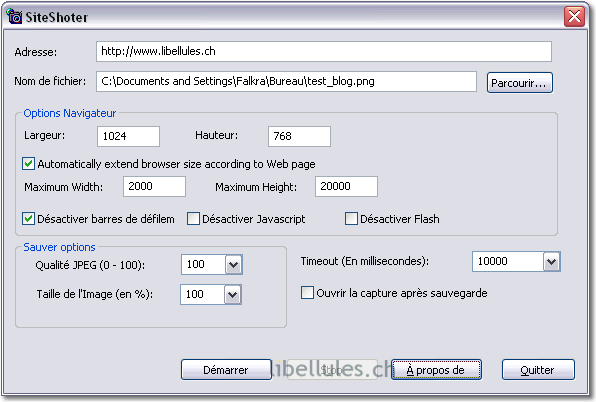
Ever you need to capture a screenshot of a webpage? What if you find that the webpage is too long for your display? One day, I want to take a screenshot of this blog. And what I did next was divide it into multiple part to fit my screen display then merge multipart image using Photoshop or else.
Now, there’s an easy way to take a screenshot of a webpage. You may use SiteShoter. Using SiteShoter, you’ll be able to take capture even a long webpage. Try it, it’s easy and no installation needed.
Download here (76 kb) Read More...
Making card with Photo Card Maker


Occasionally, you’ll need to send card in some events like birthday, wedding party, red-letter day and so on. Photo Card Maker helps you design your own card with many ready to use templates. Photo Card Maker also function as fancy name card maker with your picture on it. You can save cards you made to any format such as jpeg, bmp and png.
Download here (4.03 mb) Read More...
Wednesday, June 25, 2008
Converts images to text art

This picture produced by PicTexter, converts images to text art and saves the result to a variety of formats. It includes a set of professional-quality effects that optimize images for this particular application.
Download here Read More...
Wednesday, April 9, 2008
Irfan View, CorelDraw Thumbnail Viewer

IrfanView is a compact, easy to use image viewer. More than that, you can also edit images directly in IrfanView, to produce a variety of effects. IrfanView was created by Irfan Skiljan. The most important is (at least for me) it is able to display corel draw (*.cdr) file / cdr viewer. So it is a corel draw viewer (thumbnail) also. It is recommended to read the FAQ to explore IrfaView capabilities more. IrfanView supports so many filetypes even .txt file!
Otherwise, you may choose another CorelDraw Viewer, ST Thumbnail Explorer. Though the last mentioned is not free, it's a bit better.
Download IrfanView Read More...
Wednesday, March 5, 2008
Panorama photo with PhotoStitch

Canon PhotoStitch is an application program that merges images in horizontal or vertical sequences or stitches together images that have been shot in sections. You can use it to create panoramas of scenery or wrap-around 360-degree images. You can even create images of buildings that look as if they have been shot with a very wide wide-angle lens. Documents and printed materials shot in sections can be merged into single high-precision images. In addition, you can merge images that have been scanned into your computer.
Download PhotoStitch Read More...
Subscribe to:
Posts (Atom)


